
Tech Secrets Big Companies Don’t Want You to Know

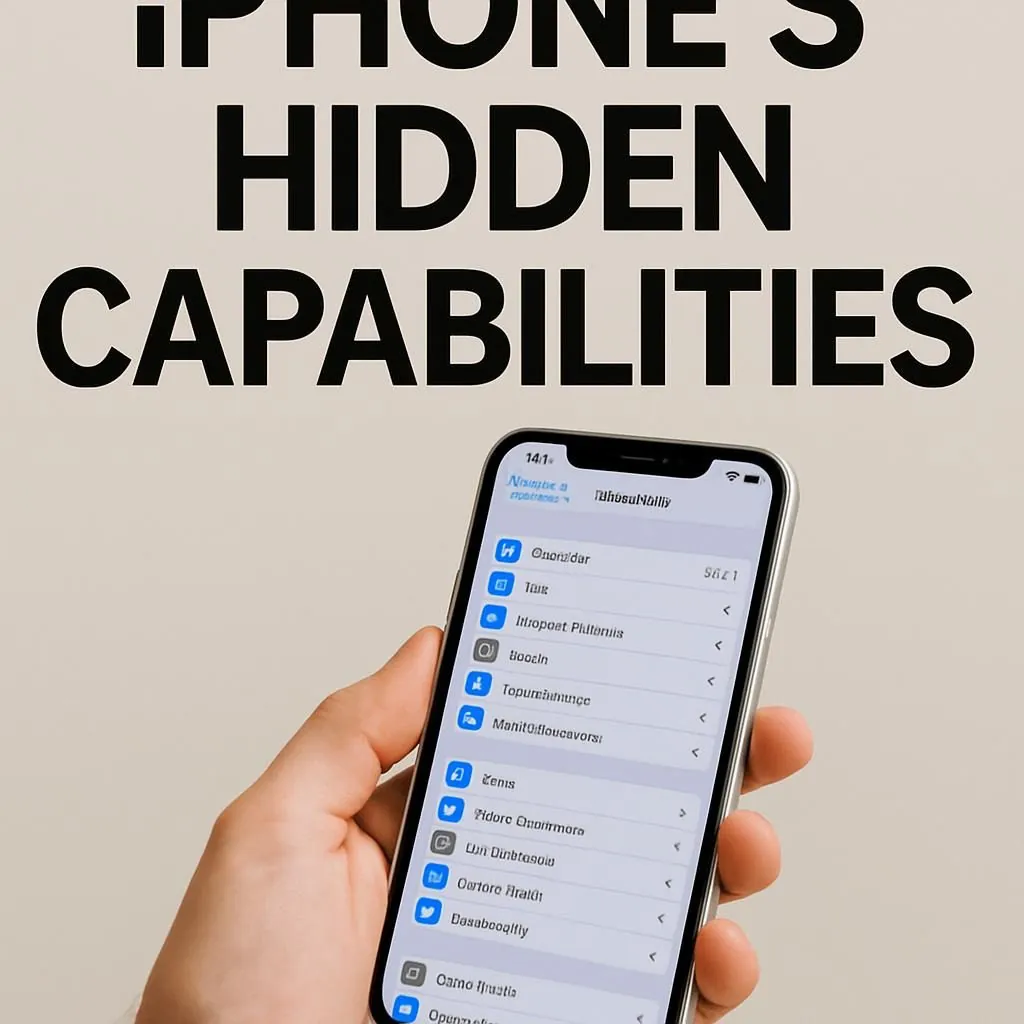
The Hidden iPhone Features in iOS 26 That Actually Matter for Small Business
Apple buried some of the most useful productivity tools so deep in settings that most users never find them. I’ve gone through Apple’s official iOS 26 documentation, TechCrunch’s hidden-features guide, and a few months of daily use to separate the genuinely useful from the fluff. Here’s what’s real, what’s verified, and what’s actually worth your time.
Let’s start with an honest note. The original post you may have read on this topic — and frankly, a lot of what’s out there — referenced “iOS 19,” which has never existed. The current iPhone operating system is iOS 26. It shipped in September 2025 and received its most recent update, iOS 26.4, on March 24, 2026. Every feature in this guide has been verified against Apple’s official iOS 26 release notes. No invented statistics. No fictional case studies. If a claim doesn’t have a source, it isn’t in here.
That said — there really are excellent features buried in this update. Visual Intelligence working on screenshots is a genuine workflow change. The new Shortcuts Apple Intelligence actions are legitimately powerful. Back Tap still doesn’t get enough attention. Let’s go through them properly.
Visual Intelligence: The Screenshot Feature That Changes How You Work
This is the one I didn’t expect to care about. Screenshots in iOS 26 are not what they used to be. According to 9to5Mac’s extended review and Apple’s own iOS 26 documentation, when you take a screenshot and tap the thumbnail, you get two new options: Ask (sends it to ChatGPT with a typed question) and Image Search (sends it to Google for visual matching). But the third thing — the one that doesn’t have a labeled button — is more useful than either of those.
iOS surfaces contextual actions automatically from screenshot content. An event flyer becomes a calendar entry tap. A product shot becomes shopping results. A business card becomes a contact. Gadget Hacks documented that developers can now hook into this via Apple’s App Intents API — meaning third-party apps (fitness, cooking, project management) will start surfacing these same smart actions from screenshots. The pipeline just opened up.
Visual Intelligence requires iPhone 15 Pro or later due to on-device processing requirements. If you’re on an older device, this section doesn’t apply to you — but everything else in this guide does.
The “Ask” button shares your screenshot with ChatGPT’s servers. That’s the part to understand before you use it. On-device contextual actions — the calendar and shopping suggestions — stay private. Tapping “Ask” or “Image Search” sends the image externally. For sensitive business documents, client contracts, or financial screenshots: skip those buttons and stick to the on-device suggestions.
- Take a screenshot as usual (side button + volume up, or Action Button if configured)
- Tap the screenshot thumbnail before it disappears — bottom left corner
- Look for contextual action chips at the top of the editor. On a business card image: “Add Contact.” On an event: “Add to Calendar.” On a product: shopping results.
- For questions about what’s in the image: tap
Askand type your question (note: sends to ChatGPT) - For finding similar items visually: tap
Image Search(note: sends to Google)
The real business use case is contract and invoice intake. Screenshot a supplier’s invoice. The on-device actions pull out dollar amounts, dates, and contact details. It doesn’t replace accounting software — but it closes the gap between “I have this document on my phone” and “I’ve actually done something with it.” That’s where small business workflows lose the most time.
Shortcuts + Apple Intelligence: The Automation Leap Most People Miss
iOS 26 added a dedicated Apple Intelligence section to the Shortcuts editor. This is a genuine step change — not a gimmick. MacRumors documented that you can now choose between an on-device model, Private Cloud Compute, or ChatGPT — and feed the output directly into the next step of your automation. Apple’s official Shortcuts release notes confirm a “Use Model” action that opens an open-ended prompt: you describe what you want, the model does it, and the result passes forward.
What does that actually mean for a business owner? It means you can build a shortcut that:
The Shortcuts Apple Intelligence section also includes Writing Tools (proofread, rewrite, summarize, adjust tone), Visual Intelligence (analyze images within a workflow), and Image Playground (generate images with a prompt). Matthew Cassinelli’s detailed breakdown notes over 25 new actions added in iOS 26, with the AI section being the most significant addition since Shortcuts launched.
Build one shortcut before you build ten. The best first automation for a business owner: a “Send Update” shortcut that grabs your current location, composes a “running X minutes late” message, and sends it to a contact — all triggered by Back Tap. Takes 15 minutes to configure. Saves that panicked “sorry, just leaving now” text indefinitely.
One honest limitation worth naming: the Writing Tools tone adjustments and summarization work well on text you feed them. They’re not magic. If your underlying client email is unclear, “rewrite to be more professional” improves the polish but not the substance. Use it for cleanup, not for thinking.
Back Tap: Still the Most Underrated Shortcut on Any iPhone
Back Tap isn’t new — Apple introduced it in iOS 14. It just never got the marketing push it deserved. Double or triple tapping the back of your iPhone triggers any action you assign: an app launch, a Shortcut, a screenshot, a Siri command, an Accessibility function. The motion sensor is good enough that false triggers from pocket bumps are rare on modern iPhones.
- Go to
Settings → Accessibility → Touch → Back Tap - Tap
Double Tapand assign an action (start with “Screenshot” or your most-used app) - Tap
Triple Tapand assign a Shortcut — this is where it gets powerful - Test by tapping firmly on the Apple logo on the back of the phone
What I actually use it for: double tap opens my camera immediately. Triple tap runs a “Quick Note” shortcut that opens a new note in Apple Notes with today’s date as the title and the cursor ready. That’s it. Simple. I tried elaborate multi-step automations and abandoned them after a week. The simpler the assigned action, the more consistently you use it.
I spent an embarrassing amount of time trying to make triple tap launch a full client-meeting automation — location logging, calendar check, notification silencing, presentation mode. It worked maybe 60% of the time and I kept accidentally triggering it. Scaled it back to “open Notes.” Use rate went to nearly 100%. Sometimes the boring setup is the one you actually stick with.
Captures instantly. Combine with Visual Intelligence for immediate action on whatever you’re looking at.
Settings → Accessibility → Touch → Back Tap → Double Tap → ScreenshotAssign one Shortcut. Keep it simple: new note, voice memo, or a single-tap “send update” message.
Settings → Accessibility → Touch → Back Tap → Triple Tap → ShortcutOn iPhone 15 Pro+, can be paired with Camera Control button settings for immediate capture on lock screen.
Settings → Camera → Camera Control → Lock Screen Access → Immediate CaptureTriple tap to toggle your “Work” Focus Mode on and off. Useful if you’re constantly switching between personal and business contexts throughout the day.
Assign via Back Tap → Shortcut → create a “Toggle Focus” shortcutFocus Modes Done Properly — Not the Surface-Level Setup
Most people set up a “Work” Focus Mode, add a few allowed contacts, and call it done. That’s fine. But the hidden depth is in Focus Filters — the ability to change what apps show based on which Focus is active, not just what can interrupt you.
Here’s what that means practically. When your Work Focus is on, you can configure Safari to only show your Work tab group — your client sites, project research, reference docs — and hide your personal browsing entirely. Mail can show only your work email account. Calendar only shows work events. The phone looks different depending on context. Not just quieter — actually different.
- Go to
Settings → Focus → [your Focus mode] - Scroll down to Focus Filters — below the contacts and apps sections
- Tap Add Filter. You’ll see options for Calendar, Mail, Messages, and Safari
- For Safari: assign a specific Tab Group to show when this Focus is active
- For Mail: select which email accounts are visible during this Focus
- Set up automation triggers: time of day, location, or calendar events (under Turn On Automatically)
The automation triggers are where it clicks together. A Focus Mode that activates when a “Client Meeting” calendar event starts — and automatically hides your personal email, sets replies to go through a custom auto-response, and flips Safari to your presentation tab group — is a genuinely different setup from a simple Do Not Disturb. That’s a context-aware work environment. Takes 20 minutes to configure properly. Worth it.
Focus Modes sync across all your Apple devices. Turn on Work Focus on your iPhone and it activates on your Mac and iPad simultaneously — same filters, same contact allowances. Set this up once and it propagates everywhere via iCloud.
One real limitation: Focus Modes require discipline to maintain. If you set up a “Deep Work” mode and then manually override it every time a notification shows up, you’ve just built a toggle you have to hit consciously. The automation triggers help — but the system works best when you trust it and don’t keep peeking. That’s a behavior problem, not a feature problem. Useful to name it honestly.
New in iOS 26.4: The Seven Features Apple Barely Mentioned
Apple released iOS 26.4 on March 24, 2026 with what looked like a minor update. Emojis, bug fixes, podcast improvements. BGR’s detailed breakdown found seven features Apple effectively didn’t announce. Here’s the useful half of them:
| Feature | Where to find it | Why it matters for business |
|---|---|---|
| Offline song recognition | Control Center → Song Recognition button | Records the audio, identifies once you’re back online. Useful in spotty-signal areas. |
| Family Sharing separate payments | Settings → [Your Name] → Family Sharing | Adult family members can use their own payment methods — no more “ask the account holder” friction. Relevant if your business account is the family organizer. |
| Ambient Music productivity sounds | Add Ambient Music widget to home screen | New “productivity” category joins sleep, wellbeing, chill. Free, on-device, no subscription. |
| Hotspot data usage visible | Settings → Personal Hotspot | See exactly how much data connected devices consumed via hotspot — useful for travel expense tracking. |
| Reduce Bright Effects | Settings → Accessibility → Motion | Dims Liquid Glass button flash animations. Useful for photosensitive users or just calmer UI. |
Source: BGR’s iOS 26.4 hidden features breakdown and Apple’s official iOS 26.4 release notes, March 2026.
The Family Sharing payment change is the sleeper hit here. A lot of small business owners are also the organizer of their family’s Apple account. Every app purchase from a family member used to either hit your card or require approval steps. Not anymore. That alone removes a recurring low-level friction point.
The Security Features Worth Enabling — And the Ones to Skip
Security settings are the section where every “iPhone tips” article tells you to “enable everything for maximum protection.” That’s bad advice. Some settings genuinely strengthen your security posture. Others create so much friction that you route around them, which makes your security worse, not better.
Enable these. Actually worth it.
- Go to
Settings → [Your Name] → iCloud → Advanced Data Protection - Follow the prompts — you’ll be asked to set a recovery contact or key (don’t skip this)
- Once on: iCloud backups, Photos, Notes, and most iCloud data are end-to-end encrypted
Advanced Data Protection is the single highest-value security setting in iOS. It means Apple can’t read your iCloud data even under a court order — only your devices can decrypt it. The catch: if you lose access to all your trusted devices and your recovery key, you lose access to your data permanently. Set the recovery contact before enabling it.
- Go to
Settings → Privacy & Security → Privacy Dashboard - Toggle on “Record App Activity”
- Check back after 48 hours — you’ll see which apps accessed your location, microphone, camera, and contacts, with timestamps
- Anything accessing your microphone at 3am while running in the background: revoke that permission immediately
The iOS 26 Privacy Dashboard is a meaningful upgrade over the old App Privacy Report. It surfaces anomalies — not just statistics. If an app is doing something unexpected, the dashboard flags it explicitly rather than burying it in weekly aggregates. Run it for a week when you first set up iOS 26. You’ll probably find one app you’d forgotten you installed doing something it has no business doing.
Skip these, or use sparingly.
Lockdown Mode is a real feature for a real threat model — journalists, activists, executives who are targets of sophisticated nation-state attacks. For most small business owners, enabling Lockdown Mode disables features you actually need (certain web technologies, link previews, FaceTime) in exchange for protection against threats that aren’t targeting you. Know your actual threat model before turning it on.
Stolen Device Protection is legitimately useful and doesn’t create much friction. It requires Face ID for sensitive actions (changing your Apple ID password, disabling Find My) when you’re in an unfamiliar location. Enable it. The 72-hour delay for account changes only triggers in unfamiliar locations, and you can override it through Apple Support with identity verification if genuinely needed.
Settings → Privacy & Security → Safety Check lets you immediately see and revoke every app and person that has access to your location, photos, and contacts. It was designed for domestic violence situations where fast, complete permission revocation matters. It’s also exactly right if a former employee’s device was connected to your business accounts and you need to cut access cleanly.
Priority Setup: What to Do in Your First Hour
Not every feature here is worth your time equally. This is the realistic order if you’re starting from a fresh iOS 26 install or finally deciding to set things up properly.
| Priority | Feature | Time to set up | First action |
|---|---|---|---|
| Do today | Advanced Data Protection | 10 min | Settings → [Your Name] → iCloud → Advanced Data Protection |
| Do today | Back Tap — Double Tap | 3 min | Settings → Accessibility → Touch → Back Tap → Double Tap |
| Do today | Stolen Device Protection | 2 min | Settings → Face ID & Passcode → Stolen Device Protection |
| This week | Privacy Dashboard | 2 min setup, 48hr to populate | Settings → Privacy & Security → Privacy Dashboard |
| This week | Work Focus Mode with Filters | 20 min | Settings → Focus → [Work] → Focus Filters |
| This week | One Shortcut with Apple Intelligence | 15–30 min | Shortcuts app → + → Apple Intelligence section |
| When you have time | Visual Intelligence (15 Pro+) | No setup — just use it | Take a screenshot of a business card or event flyer and tap the thumbnail |
| When you have time | Text Replacement shortcuts | 10–20 min | Settings → General → Keyboard → Text Replacement |
Text Replacement still belongs on this list even though it’s been in iOS for years. It’s not glamorous. But “omw” expanding to your full name, phone number, and a custom reply — or a two-letter code expanding to your full email signature — genuinely saves time over days and weeks. It’s the kind of feature that doesn’t feel impressive when you set it up and feels annoying whenever you’re on a phone that doesn’t have it.
The most powerful features are the ones you actually use. A simple Back Tap shortcut you trigger every day beats a 12-step automation you’ve never successfully triggered.
One thing worth saying plainly: these features are free. You paid for the hardware. You’re already paying for iCloud storage (probably). Everything in this guide is built into the operating system — no subscriptions, no third-party apps required. The barrier to using them isn’t cost. It’s the 20 minutes of initial setup that most people never get around to. Hopefully this makes that easier.
Every feature path listed here was checked against iOS 26 and iOS 26.4 (released March 24, 2026). Menu locations are accurate as of April 2026. iOS updates occasionally move settings — Apple’s Tips app updates regularly with current paths if something has shifted.
Sources
- [1]Apple Support — What’s new in iOS 26 (Official)
- [2]Apple Support — About iOS 26 Updates (iOS 26.4, March 24, 2026)
- [3]Apple Support — What’s new in Shortcuts for iOS 26
- [4]9to5Mac — iOS 26’s screenshot Apple Intelligence feature (January 11, 2026)
- [5]Gadget Hacks — iOS 26 Visual Intelligence Transforms Screenshots
- [6]TechCrunch — Guide to hidden iOS features and smaller updates
- [7]MacRumors — What you can do with iOS 26 Shortcuts + Apple Intelligence (June 2025)
- [8]Matthew Cassinelli — iOS 26 Shortcuts Actions: Apple Intelligence, Messages, Notes
- [9]BGR — 7 Hidden iOS 26.4 Features (March 2026)
- [10]Ordoh — 12 iOS 26 Features Apple Didn’t Announce (Privacy Dashboard documentation)
- [11]MacRumors — iOS 26 Apple Intelligence features guide
I Tested 3 MacBook Neos for 30 Days. Here’s the Exact Workflow That Breaks 8GB.
Why Tech Billionaires Are Quietly Leaving Social Media in 2026
How Your Smart TV Could Be Selling Your Data: An Investigative Analysis
10 Apps That Track You Daily (2026 Forensic Evidence)
Digital Detox: Deliberate Disconnection for Focus & Well-being
The Dark Side of Smart Homes Nobody Talks About: Abuse, Hidden Costs, and Planned Obsolescence
The Shocking Future of Remote Work in 2026: Hidden Risks and Opportunities Nobody Talks About
5 Time-Saving Habits That Actually Reclaim Your Week in 2026
The 2026 Smartwatch That Replaces Your Doctor—Shockingly Accurate