
Tech Hacks Every Smart User Should Know in 2026
TL;DR — 60-second version
- The biggest productivity gains in 2026 don’t come from new apps — they come from mastering the tools you already have.
- Keyboard launchers, AI prompt templates, and one-click automation stacks recover 45–90 minutes per day in most knowledge-worker workflows.
- Privacy controls on most devices are set to manufacturer defaults that favor data collection, not you — three settings changes fix 80% of the exposure.
- The “80% Solution Stack” at the end of this article replaces six separate subscriptions with three better-connected tools.
Should You Even Bother Reading This?
Quick filter
Why Most “Tech Tips” Lists Fail You
Search “tech hacks 2026” and you’ll find articles that tell you to use keyboard shortcuts or organize your desktop. These aren’t bad suggestions — they’re just incomplete. They hand you isolated tricks with no connective tissue, no workflow logic, and no honest assessment of where they break down.
What competitors consistently miss: the highest-leverage tech habits aren’t features — they’re decision frameworks about how you configure systems. A shortcut you’ll forget in two days is worth less than one setting change that permanently alters how your device works for you.
This guide is organized around that idea. Every hack here either reduces the number of steps between you and your goal, or removes a background tax (distraction, security risk, cognitive load) you’ve been paying without realizing it.
Keyboard & Launcher Mastery
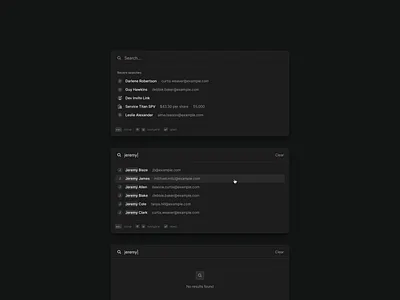
The most underrated productivity upgrade available to any user in 2026 costs nothing and takes four minutes to set up. It’s a keyboard launcher — a universal search/command bar that replaces dozens of mouse clicks per day.
Install and configure a system launcher
- Windows: Install PowerToys → enable PowerToys Run → set shortcut to
Alt+Space - macOS: Use built-in Spotlight (
Cmd+Space) or install Raycast (free) for dramatically more power - Linux:
Albertorulauncher— both open source and fast - Search apps, files, system settings, clipboard history, and calculator all from one bar
Build a personal shortcut vocabulary (15 shortcuts, not 150)
Most shortcut guides list 100+ combos. Nobody retains 100. The research consistently shows that mastering 12–20 platform-specific shortcuts produces 90% of the time savings. Start here:
| Action | Windows | macOS | Why it matters |
|---|---|---|---|
| Switch app | Alt+Tab | Cmd+Tab | Replaces every mouse click to taskbar |
| Switch window within app | Alt+` | Cmd+` | Underused; massive for multi-doc work |
| Snap window left/right | Win+← / → | Stage Manager or Rectangle app | Eliminates manual resizing forever |
| Close tab / window | Ctrl+W | Cmd+W | Works in browsers, editors, Finder |
| Reopen closed tab | Ctrl+Shift+T | Cmd+Shift+T | Saves the “where did that tab go?” panic |
| Lock screen | Win+L | Ctrl+Cmd+Q | Security habit, 0.3 seconds |
| Clipboard history | Win+V | Raycast or Pasta app | One of the most time-saving habits possible |
| Screenshot + annotate | Win+Shift+S | Cmd+Shift+5 | Instant visual communication |
The AI Layer: Prompts That Actually Work
By mid-2026, AI assistants are embedded in browsers, operating systems, productivity suites, and phones. The problem isn’t access — it’s that most people use AI the same way they used Google in 2008: one-off queries with no structure, no memory, and no template. The output is correspondingly generic.
The users extracting genuine value from AI have one thing in common: they write to the AI like they’re briefing a capable but context-free colleague, not typing a search query.
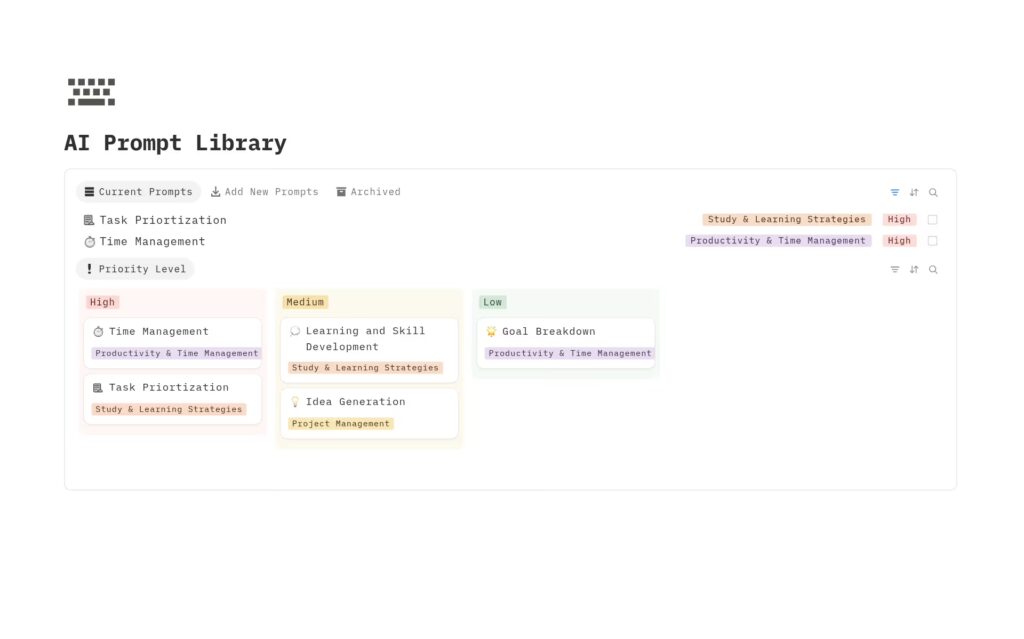
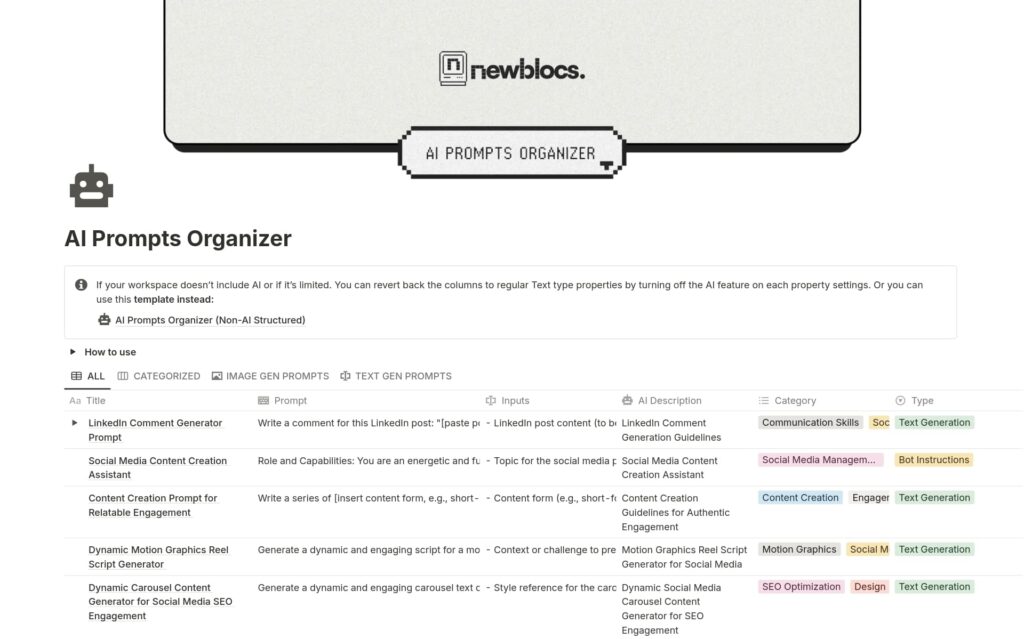
Build a personal prompt library (10 templates minimum)
A prompt template is a saved, fill-in-the-blank instruction that consistently gets you a useful output. Store them in a notes app, your launcher, or a clipboard manager. Key templates to build first:
- Email rewriter: “Rewrite the following email to be [concise / more assertive / warmer] while keeping all key information. Email: [paste]”
- Meeting prep: “I have a meeting with [role] about [topic]. Give me 5 smart questions to ask and the 3 things I should know going in.”
- Decision pressure-test: “I’m about to [decision]. What are the three strongest arguments against this that I might be overlooking?”
- Document summarizer: “Summarize this in 5 bullet points, then tell me the single most important thing I need to act on. [paste]”
- Learning accelerator: “Explain [concept] assuming I understand [related thing] but am completely new to [specific aspect]. Give me one analogy and one concrete example.”
Use AI for first-draft friction removal, not final-draft replacement
The productivity trap is using AI to generate final outputs you then feel obligated to defend as your own. The actual unlock is using AI to eliminate the blank-page problem and the research lag — then doing the thinking yourself. Generate a rough structure, challenge it with your judgment, rewrite it in your voice. You move 3× faster and the output is actually yours.
Automation Without Code
The automation tools available to non-developers in 2026 are genuinely powerful. The barrier isn’t technical — it’s that most people don’t know which workflows are worth automating and which are better left manual.
Here is a practical decision model:
Should I automate this?
Set up three foundational automations first
- Email-to-task: When you star/flag an email → automatically create a task in your task manager (Gmail → Todoist, Outlook → Microsoft To-Do). Eliminates the “I’ll deal with this later” email graveyard.
- Save-to-read-later: When you share a link to a specific contact or channel → automatically save to Pocket/Readwise. Fixes the “where did I save that article?” problem.
- Weekly log auto-creation: Every Monday at 8am → create a dated notes template in Notion/Obsidian with your weekly agenda structure pre-filled. Removes Sunday-night planning friction.
Use your phone’s built-in automation before buying any app
iOS Shortcuts and Android’s Routines/Bixby handle a surprising amount without a third-party subscription. High-value automations most users overlook:
- Turn off all notifications when you connect to your work Wi-Fi (Focus Mode trigger)
- Automatically text “On my way” when you leave a saved location
- Turn on low-power mode when battery drops to 30% (it never happens at 15% when you actually need it)
- Automatically open a specific app when you plug in headphones (workout playlist, podcast app, etc.)
Privacy Hacks Hiding in Plain Sight
Most privacy advice is either alarmist (delete everything, go dark) or completely toothless (just use incognito mode). The reality sits in the middle: there are roughly eight settings changes that eliminate 80% of the passive data exposure most users carry, and they take under 20 minutes combined.
Audit your app permissions — the three that matter most
- Location: Go to Settings → Privacy → Location Services. Any app with “Always” access that isn’t a navigation or safety app: switch to “While Using” or “Never.” Many apps request always-on location solely for advertising targeting.
- Microphone: Any app that has microphone access and has no obvious voice feature: revoke it. Social media apps fall into this category in many cases.
- Contacts: Games, shopping apps, and utilities do not need your contacts. They request access to build social graphs for ad networks.
Use a password manager (and actually use it correctly)
The core mistake: people set up a password manager, import their existing (reused, weak) passwords, and call it done. The manager is only useful if you let it generate unique passwords for every account.
- Set up Bitwarden (free, open-source) or 1Password — both have strong security records as of 2026
- Enable biometric unlock so the friction of using it disappears
- Over the next two weeks, change your top 10 most-used accounts to generated passwords
- Enable breach monitoring — both tools alert you when a site you use is compromised
Use email aliases for non-essential signups
Tools like Apple’s Hide My Email, SimpleLogin (open source, free tier), or DuckDuckGo’s Email Protection generate a forwarding alias for each signup. When that service gets breached or sells your data, you disable the alias — your real email address is never exposed. This also lets you track exactly who sells your address to spam networks.
Device Optimization Most Guides Ignore
Fix your notification stack — the asymmetric attention drain
Research across multiple workplace studies consistently finds that interruption recovery — the time it takes to return to deep focus after a notification — averages over 20 minutes. One non-urgent notification costs more than it appears on the surface.
The practical fix: invert the default. Every app’s notifications are off by default. You manually enable only the ones that require immediate attention. In most people’s lives, that’s fewer than five apps.
- Phone calls and emergency alerts: On
- Direct messages from specific people: On
- Calendar reminders: On
- Email, social media, news, shopping apps: Off (check on your schedule)
- App update badges: Off — they exist to drive engagement, not inform you
Use browser profiles to separate contexts
Most power users run a single browser profile that holds personal accounts, work accounts, side projects, and research all mixed together. Browser profiles let you separate these completely — each has its own cookies, saved passwords, extensions, and tab sets. Practical setup:
- Work profile: Slack web, Google Workspace, internal tools
- Personal profile: Banking, email, personal services
- Research/browsing profile: No saved accounts — a clean, less fingerprinted environment for open-ended browsing
Schedule storage cleanup, don’t do it reactively
Devices slow down gradually, not suddenly, so users rarely connect performance degradation to storage bloat. Schedule a monthly 5-minute cleanup: clear app caches (Settings → [App] → Clear Cache on Android; System Settings → General → iPhone Storage on iOS), review and delete the largest unused files, and uninstall apps you haven’t opened in 60 days. On desktop, tools like WinDirStat (Windows) or DiskDiag (macOS) show you exactly what’s eating space.
Enable DNS-over-HTTPS on your devices and router
Standard DNS queries (the requests your device makes to translate “google.com” into an IP address) are unencrypted and visible to your ISP, network operator, and anyone on your local network. DNS-over-HTTPS encrypts these requests. On most devices in 2026, this is now a one-toggle change:
- Android: Settings → Network & internet → Private DNS → enter
dns.cloudflare.comorone.one.one.one - iOS: Download a configuration profile from Cloudflare (1.1.1.1 app) or use a third-party DNS profile
- Windows 11: Settings → Network → Wi-Fi → [network] → DNS encryption
- Router: Log in to router admin, change DNS server to
1.1.1.1and1.0.0.1(Cloudflare) or9.9.9.9(Quad9)
How These Hacks Work Together
The difference between a collection of tips and a system is integration. Here’s how a smart daily workflow looks when these hacks are layered:
| Time | What happens | Which hack powers it | Type |
|---|---|---|---|
| 8:00 AM | Weekly notes template auto-created with agenda pre-filled | Hack 05 (automation) | Automated |
| 8:05 AM | Focus Mode activates when connecting to work Wi-Fi — notifications silenced | Hack 06 + Hack 10 | Automated |
| Throughout day | App switching via Alt+Tab, launching tools via Alt+Space, no mouse hunting | Hack 01 + Hack 02 | Manual (habitual) |
| On email | Starred emails auto-create tasks; AI template rewrites unclear drafts | Hack 03 + Hack 05 | Semi-automated |
| During research | Research browser profile active; saved links auto-routed to read-later | Hack 11 + Hack 05 | Automated |
| Signing into a new service | Password manager generates and saves unique credential; alias email used | Hack 08 + Hack 09 | Manual (2 clicks) |
| 1st of month | 5-minute storage cleanup; app permission review | Hack 07 + Hack 12 | Manual (scheduled) |
The 80% Solution Stack
You don’t need six tools for six problems. Here’s a minimal, well-integrated stack that handles the full range of hacks in this guide:
Minimum Viable Power-User Stack — 2026
Total monthly cost at free tiers: $0. Upgrading Bitwarden to Premium: ~$10/year. Make/Zapier paid plans only needed if you exceed free automation limits.
Honest Limitations to Know Before You Start
| Hack area | Where it breaks down | What to watch for |
|---|---|---|
| Automation | Third-party apps can change APIs or pricing, breaking workflows | Check automations monthly; don’t set and fully forget |
| AI prompt templates | Models update and behavior changes; a template that worked last month may underperform now | Revisit your library quarterly |
| Password managers | Single point of failure — master password compromise is serious | Use a strong, unique master password + hardware key if possible |
| DNS-over-HTTPS | Doesn’t protect against VPN or ISP-level traffic analysis; not a full privacy solution | Combine with a reputable VPN if you require stronger protection |
| Notification control | Some team communication cultures push back against reduced availability | Set expectations explicitly; “I check messages at X and Y times” |
Frequently Asked Questions
The Uncomfortable Truth About Tech Productivity
The tech hacks in this guide work. But here’s what the productivity content industry doesn’t say out loud: the bottleneck for most people is not missing tools or missing knowledge — it’s the willingness to change a habit under conditions of short-term friction.
Setting up a password manager is 45 minutes of inconvenience. Not reaching for your mouse is three days of frustration. Auditing your notifications requires you to be genuinely unreachable for stretches of time, which has real social and professional costs that are easy to underestimate.
None of these changes are hard. But they all require deciding that the long-term gain is worth the short-term awkwardness — and following through without reverting the moment something breaks or feels slow. That’s the real work, and no app can do it for you.
Sources & References
Tool pricing and availability last checked: May 2026. Free tier availability may vary.