
Little-Known Tech Features You’ll Wish You Knew Sooner
Most of these features ship enabled on your device. You just have to know where to look.
- iPhone (iOS 26): Enable Adaptive Power, Carrier Location Limiting, and encrypted RCS to Android — all three are off by default.
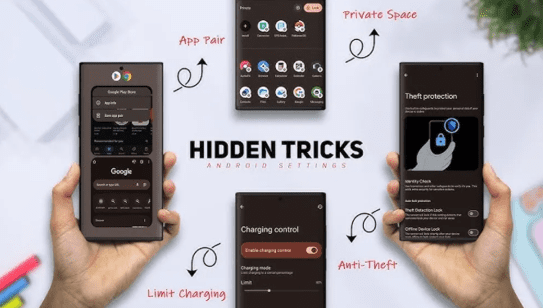
- Android 16: App Pinning, Private Compute Core, and customisable lock screen shortcuts transform security without third-party apps.
- Chrome 145: Built-in Task Manager, Memory Saver, and per-tab sleeping eliminate most browser slowdowns for free.
- Windows 11: God Mode, PowerToys, and the Energy Saver CPU limiter fix the bloat Microsoft never advertised.
- macOS Sequoia 15.7: App Management audit, Living Activities, and the Cmd+Spotlight path trick are life-quality upgrades hiding in plain sight.
Should You Bother with Hidden Settings?
Not every hidden feature belongs on every device. Before you start flipping toggles, a quick decision check:
- Use the same device for more than 3 hours a day
- Have ever been frustrated by battery life, browser slowdowns, or privacy concerns
- Work with sensitive data (financial, medical, client files)
- Hand your phone to others to show photos, demos, or content
- Keep 10+ browser tabs open regularly
- Use an older, low-spec device (enabling features may increase load)
- Are on a managed corporate device (IT policy may restrict changes)
- Have minutes of spare setup time and genuinely no friction currently
- Use Chrome extensions heavily — more flags increase instability risk
Why These Features Exist (and Stay Hidden)
The features in this guide aren’t secret. They’re not Easter eggs. They exist deliberately — buried under disclaimers, accessibility menus, Developer settings, and experimental flags — because the companies that built them had good reasons to keep the default experience simple.
Apple doesn’t surface Adaptive Power in the main Battery menu because it involves trade-offs a casual user might not want. Google hides Private Compute Core because explaining on-device AI sandboxing to a first-time Android user would cause more confusion than confidence. Chrome buries its Task Manager because most people don’t need it, until their browser becomes unresponsive and they have no idea why.
The result is a permanent gap between what your device can do and what you’re actually using. This guide closes that gap — methodically, platform by platform, with real instructions rather than vague directions.
Most people know Low Power Mode. Far fewer know that Apple has replaced “blunt instrument” battery saving with something actually intelligent. Adaptive Power uses on-device AI to predict your usage patterns — workdays vs. weekends, morning commutes vs. afternoon meetings — and makes barely-perceptible micro-adjustments: a slightly dimmer screen at moments you won’t notice, background processes paused when you’re not actively using the phone.
The practical result: meaningfully better battery longevity without the jarring performance drop that makes Low Power Mode feel like a penalty.
Your mobile carrier has always been able to see your approximate location via cell tower triangulation — that’s a network-level reality no phone setting can fully eliminate. What iOS 26.3 quietly added, however, is a control that prevents your carrier from accessing your precise GPS-derived location data. It’s a meaningful distinction: rough area vs. exact address-level tracking.
This one requires no action on your part — it’s automatic. iOS 26.5 introduced end-to-end encryption for iPhone-to-Android messages via the RCS standard. When both sides are running updated software, the lock icon appears. The green bubble finally has teeth.
What this changes practically: if you’ve been using WhatsApp or Signal specifically because your Android-using family and friends needed secure messaging, you now have a native fallback. It won’t replace Signal for high-sensitivity conversations, but for everyday life it removes a major reason to route around Apple Messages.
Most people use Focus Modes as a glorified Do Not Disturb. The actual power sits underneath: you can configure Focus to filter not just notifications, but calls and voicemails by relationship type. Contacts-only. Favourites-only. People in a specific list.
The underused feature within a feature: Focus pages. You can assign entirely different home screen layouts to different Focus Modes. Work Focus = productivity apps front and centre. Personal Focus = social apps visible. The visual context shift reduces the cognitive tax of mode-switching.
Then: Customize Screens → assign specific home screen pages
The Health app has tracked sleep duration for years. iOS 26.4 added something more useful: an averaged trend view that smooths out outlier nights and shows whether your sleep quality is genuinely improving or worsening over rolling 14-day and 30-day windows. Single-night data is noisy. Trend data is actionable.
The scenario: you want to show someone a photo, play a YouTube video, or let a child play a game. The risk: they swipe too far, see something private, or accidentally post to your Instagram. App Pinning locks the screen to a single app. They cannot swipe out. They cannot access notifications. Your PIN is required to unpin.
This is not a niche feature. It should be in everyone’s muscle memory before handing their phone to anyone.
To pin: open Recents, tap the app icon above the card → Pin
Google introduced Private Compute Core as a sandboxed on-device processor for sensitive AI features — Live Captions, Now Playing (ambient music identification), and Smart Reply. The data these features process never leaves your device; the sandbox is isolated from apps and network access.
There’s nothing to “enable” here — but there is something to verify: you can audit exactly what’s running inside it.
Android has had data usage warnings for years. Most people never set them because the process was buried. In Android 14 and 16, the flow is straightforward: set a monthly data ceiling, and the phone will either warn you or cut mobile data when you hit it. No third-party app required.
→ Set data limit → enter your plan’s cap
Android 16 automatically hibernates apps you haven’t used in months — stripping their cached data, revoking permissions they’ve accumulated, and removing them from memory. This happens silently. The apps remain installed; they just lose the bloat they’ve built up. On devices that haven’t been cleaned in years, this reclaims measurable storage — often several gigabytes on phones with 20+ installed apps.
The flashlight-and-camera pair that shipped on your lock screen aren’t fixed. Android 14 and later let you replace them with anything useful to you: QR scanner, wallet, specific app shortcuts. A small change with an outsized daily impact — the lock screen is the most-seen screen on most phones.
chrome://flags) are not fully QA-tested. Enable one at a time. If Chrome becomes unstable, open Flags and hit “Reset all.” Your data is unaffected. Chrome’s Task Manager shows every tab and extension as a separate process, with real-time CPU and RAM consumption. Most Chrome slowdowns trace back to one or two rogue tabs or extensions consuming disproportionate resources. The built-in Task Manager surfaces the culprit in seconds — without the need for a system-level tool.
Or: Menu (⋮) → More tools → Task manager
Sort by Memory or CPU column → identify and end misbehaving processes
Memory Saver automatically puts inactive tabs to sleep, freeing their memory allocation. On a machine with 16 GB RAM and 30 open tabs, this can reclaim 1–3 GB during a typical workday. Tabs reload when you revisit them — a half-second delay in exchange for a meaningfully more responsive system.
→ Add exceptions for sites you want always active (e.g. Gmail, Slack web)
An embarrassing number of people email themselves links to continue reading on another device. Chrome has had a native, faster solution for years that most users never discover: right-click any tab or address bar link, choose “Send to your devices,” and it arrives as a notification on any signed-in Chrome instance — phone, tablet, secondary computer.
Retrieve sent tabs: History → Tabs from other devices
Chrome added a native Reading Mode to the side panel — no Reader extension needed. It strips ads, navigation menus, auto-playing videos, and everything else to serve the article text cleanly. It also adjusts font size, line spacing, and colour theme.
Then: View → Reading mode (or the book icon in the side panel)
“God Mode” is a developer shortcut that aggregates every Windows control panel setting into a single, searchable folder. Over 200 options that would otherwise require navigating through Settings, Control Panel, and Administrative Tools — accessible from one place. It’s been in Windows for 15 years. Most users have never heard of it.
Name it exactly: GodMode.{ED7BA470-8E54-465E-825C-99712043E01C}
Press Enter → double-click the folder
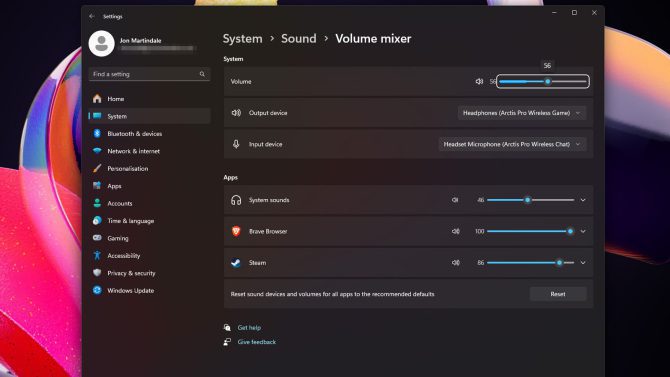
Windows 11’s Energy Saver mode, added quietly in 23H2, does more than lower screen brightness. It caps background process CPU allocation — which means an app running wild in the background can’t fully hijack your processor. On under-spec’d machines (8 GB RAM, older CPUs), this makes a perceptible difference to foreground responsiveness.
→ Optional: set to activate at a specific battery percentage
Windows Snap Layouts (the grid that appears when you hover a maximise button) is useful but rigid. PowerToys FancyZones lets you draw any custom window layout — thirds, sixths, overlapping zones, asymmetric arrangements — and snap windows to them with Shift + drag. For multi-monitor setups with different aspect ratios, this is transformative.
Open PowerToys → FancyZones → Enable → Launch editor to draw your zones
Windows has had a clipboard history manager since version 1809 (2018). It captures everything you copy in a searchable, pinnable list. The only reason most people don’t use it: it requires one-time activation, and nobody told them.
Then: Win + V to open clipboard history at any time
Sequoia 15.7 introduced more granular permission controls for App Management — a setting that controls which apps can modify other apps on your system. This is a vector commonly abused by malware and overly permissive utilities. Most Mac users have never checked it. Some will be surprised by what they find.
→ Review the list → revoke any app you don’t recognise or no longer use
Sequoia 15.7 brought Live Activities to the Mac menu bar — sports scores, food delivery timers, flight status, and similar ongoing events visible as persistent compact widgets without switching apps. Click any activity to expand it inline. The design intent is focus: you get the status update without the notification pull.
Control visibility: System Settings → Notifications → [app] → Allow Live Activities
Most Mac users use Spotlight to find files and hit Enter to open them. A single modifier key changes that entirely: holding Cmd while clicking a Spotlight result reveals its location in Finder rather than opening it. For navigating deeply nested project folders, this saves considerably more time than it sounds.
Spotlight indexes Fonts, Developer documentation, Music, and Bookmarks by default. If you never search for any of these, they’re adding index overhead and cluttering results. Disabling irrelevant categories makes Spotlight visibly faster at returning the results you actually want.
→ Uncheck: Fonts, Developer, Music, Bookmarks (anything you never use)
How This Actually Works Together: The 80% Stack
You don’t need all 22 features. For most people, six changes cover the vast majority of daily friction. Here’s a minimal stack that takes roughly 12 minutes to set up:
This stack cuts across platforms intentionally. If you’re on iPhone + Mac + Chrome (the most common professional setup in 2026), these six changes address battery, privacy, performance, productivity, security, and focus in one pass.
- Chrome Memory Saver + Windows Energy Saver: Complementary. Chrome limits tab memory; Energy Saver limits background CPU. Together they’re materially better than either alone on mid-range Windows machines.
- iOS Focus Modes + Mac Do Not Disturb: When you set a Focus on your iPhone, it propagates to your Apple Watch and Mac automatically if connected. One toggle, three devices silenced appropriately.
- Chrome Tab Sync + Send to Device: Not the same feature. Tab Sync passively mirrors open tabs across devices. Send to Device is an active push. Use Sync for continuity; use Send for intentional handoff.
- Android App Hibernation + Data Limits: Hibernated apps stop consuming background data by default. Setting a data cap catches anything that slipped through.
Quick Reference: Impact vs. Setup Time
| Feature | Platform | Setup Time | Impact Type | Reversible? |
|---|---|---|---|---|
| Adaptive Power | iOS 26 | < 30 sec | Battery | Yes |
| Carrier Location Limit | iOS 26.3 | < 30 sec | Privacy | Yes |
| RCS Encryption | iOS 26.5 | Automatic | Privacy | N/A |
| App Pinning | Android 14+ | 1 min | Privacy / Safety | Yes |
| Private Compute Core | Android 12+ | Audit only | Privacy | N/A |
| Data Limits | Android 14+ | 2 min | Cost | Yes |
| Chrome Task Manager | Chrome all | 0 (built-in) | Diagnostics | N/A |
| Memory Saver | Chrome 110+ | 1 min | Performance | Yes |
| Send Tab to Device | Chrome sync | 0 (built-in) | Workflow | N/A |
| God Mode | Windows 11 | 1 min | Control | Yes (delete folder) |
| Clipboard History | Windows 10/11 | 30 sec | Productivity | Yes |
| App Management Audit | macOS Sequoia | 3–5 min | Security | Yes |
| Spotlight Category Filter | macOS all | 2 min | Speed | Yes |
Limitations and What to Watch Out For
No guide like this is complete without the honest caveats. These features are genuinely useful — but none of them are magic, and several have real trade-offs worth knowing before you enable them.
Adaptive Power is AI-driven, which means it learns. In the first week of use, it may not behave optimally because it hasn’t yet mapped your patterns. Give it 10–14 days before deciding whether it’s working.
Chrome Flags can break things. Experimental flags exist because they’re not production-ready. If you work in a browser-dependent environment (web dev, design tools, finance portals), test flags on a secondary Chrome profile before enabling them in your main one.
Windows PowerToys FancyZones has a learning curve. The first time you draw zones, it feels awkward. Give it two workdays before abandoning it — most users find the Shift+drag habit forms quickly once zones are well-defined.
App Pinning doesn’t prevent emergency calls on all Android versions. The emergency dial pad may still be accessible depending on manufacturer skin. Test this before relying on it in sensitive handoff situations.
RCS encryption requires both parties to be updated. If the Android recipient hasn’t updated their Messages app or carrier support, messages fall back to unencrypted RCS or SMS. The lock icon is the only reliable confirmation.
Frequently Asked Questions
chrome://flags → Reset all. Avoid enabling multiple flags simultaneously if you depend on Chrome for work tools. Test one at a time.Final Thought
Here’s the uncomfortable truth about hidden tech features: the gap between what your devices can do and what you’re actually using isn’t going to close on its own. These aren’t obscure hacker tricks — they’re features funded, built, and shipped by billion-dollar companies who then buried them under layers of onboarding friction because “simple defaults” move faster in consumer markets.
The practical implication: nobody is coming to configure your phone for you. Every year you don’t audit these settings is another year your carrier has more location data than they need, your browser is consuming more memory than necessary, and your clipboard history remains a single item long.
Start with the three that take under a minute each. Adaptive Power on iOS, Memory Saver in Chrome, Clipboard History on Windows. Then add the App Management audit on macOS. Four changes, fifteen minutes, material improvement in battery, performance, productivity, and security. The rest can wait until they’re relevant.
The features will still be there. Whether you use them is the only variable left.
Stay Ahead of What’s Next
FutureNow covers emerging technology, digital tools, and the features that actually matter — before they go mainstream.
Explore FutureNow →Primary Sources
- Apple iOS 26 Release Notes — support.apple.com
- Memeburn: “12 Hidden iPhone Features Apple Added Before WWDC In 2026” — May 30, 2026
- TechRepublic: “6 Android Hidden Features Most Users Never Discover” — January 2026
- Geeky Gadgets: “10 Hidden iPhone Features: Secret Settings” — April 2026
Secondary Sources
- Macworld: “Hidden iPhone features 2026: settings most users miss” — December 2025
- HawkDive: “10 Hidden macOS Sequoia 15.7 Features Mac Users Should Try in 2026” — May 2026
- Tech Vanity: “Hidden Google Chrome Features You’re Not Using (2026 Edition)” — January 2026
- gHacks Tech News: “31 Windows 11 Tricks You Probably Didn’t Know Exist” — February 2026
Last verified: May 31, 2026 · iOS 26.5 · Android 16 · Chrome 145 · Windows 11 24H2 · macOS Sequoia 15.7